

How to Create and publish a Service on Serpworks complete guide
After setting up your freelancer account on Serpworks, learn how to offer your expertise on Serpworks by creating a professional service listing, setting custom scope and pricing, adding gallery media, and attaching extra add-ons.
Direct Answer Summary
To create a service on Serpworks, go to Services > Add new Service in your dashboard side menu. Complete the 4-step wizard: Step 1 (Overview) for title, category, and description; Step 2 (Scope and Pricing) for pricing and optional service add-ons; Step 3 (Gallery) for cover and gallery images; and Step 4 (Common FAQs) to answer client questions before clicking Save & Publish. You can also create reusable add-ons under Addons > Add new in the sidebar.
Step-by-Step Guide: How to Create a New Service
Navigate to your dashboard sidebar menu, expand Services, and click Create a Service button to launch the service creation wizard.
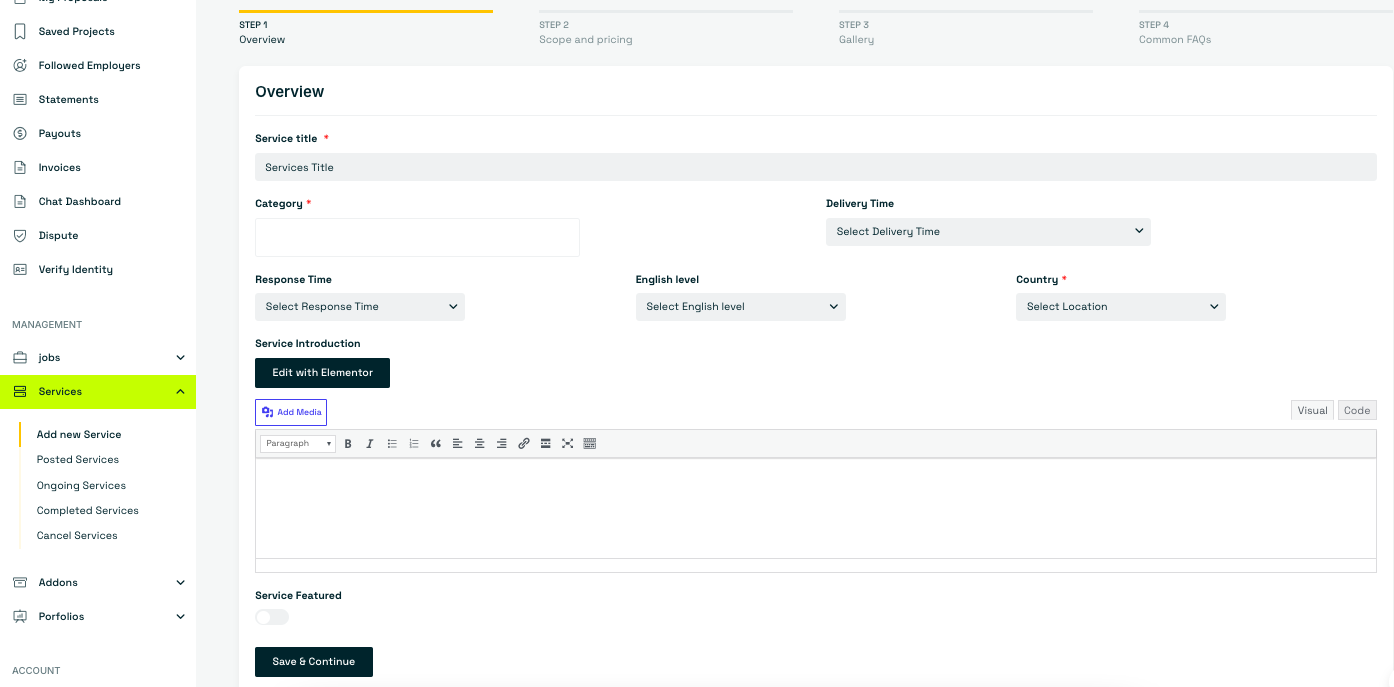
Step 1: Overview Details
Fill out the primary metadata for your service listing:
Service Title: Enter a clear, descriptive title summarizing what you offer.
Category: Select the main category that best fits your service.
Delivery Time: Choose the estimated duration needed to complete the work from the dropdown menu.
Response Time & Details: Select your expected response time, required English Level, and target Country location.
Service Introduction: Provide a detailed description explaining what your service covers. Use the rich text editor (or click Edit with Elementor / Add Media) to structure your text.
Service Featured Toggle: Enable this toggle if you want to feature this listing on your profile/marketplace (if applicable).
Step 2: Scope and Pricing
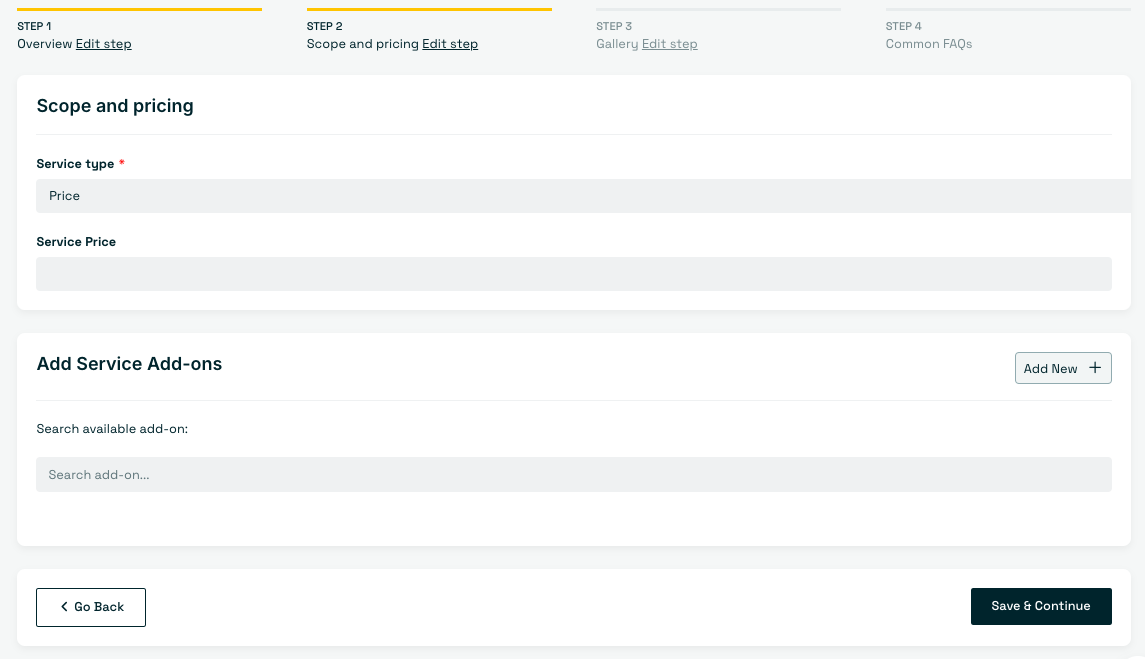
Set up the financial parameters for your offer:
Service Type & Pricing: Select your pricing structure and enter your base Service Price.
Package Creation: To create a package, select Package in the Service Type. Please follow these guidelines:
- Titles: Keep them short and professional (e.g., Basic Standard Premium).
- Features: Keep them brief and add each to a separate line.
Example:
5 Backlinks
Manual and contextual
100% indexed - 💡Quantity: Make sure to configure all 3 packages for the best buyer experience.
Step 3: Gallery & Media Attachments
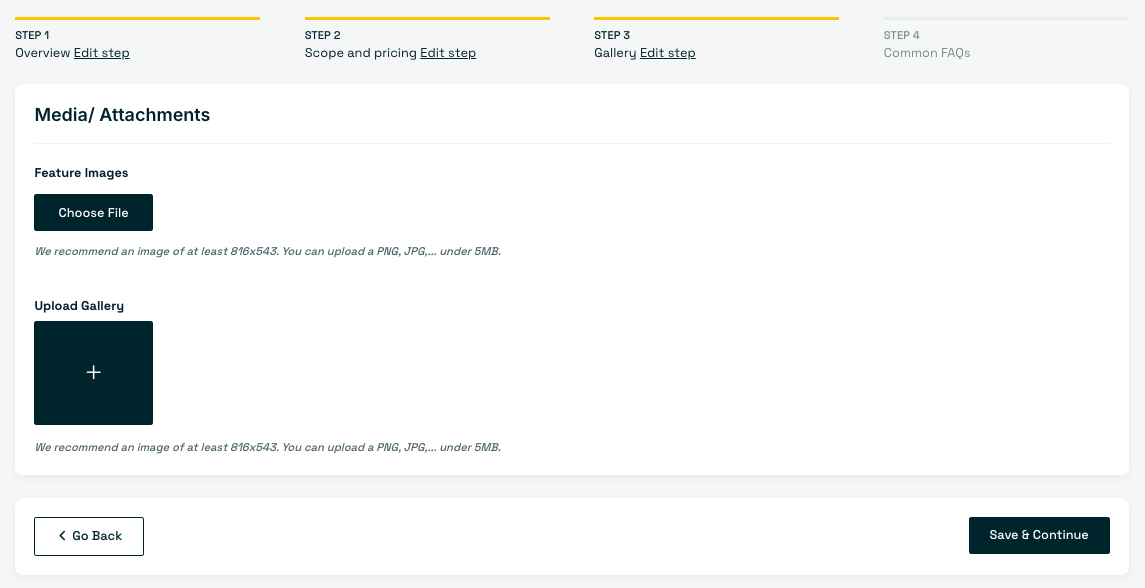
Upload visual assets for your service listing:
Feature Images: Click Choose File to upload your primary thumbnail image (recommended dimensions: at least 816x543 px, PNG/JPG format under 5MB).
Upload Gallery: Click the + box to attach supplementary images for your service (recommended dimensions: 816x543 px, PNG/JPG under 5MB).
Creating an Add-on
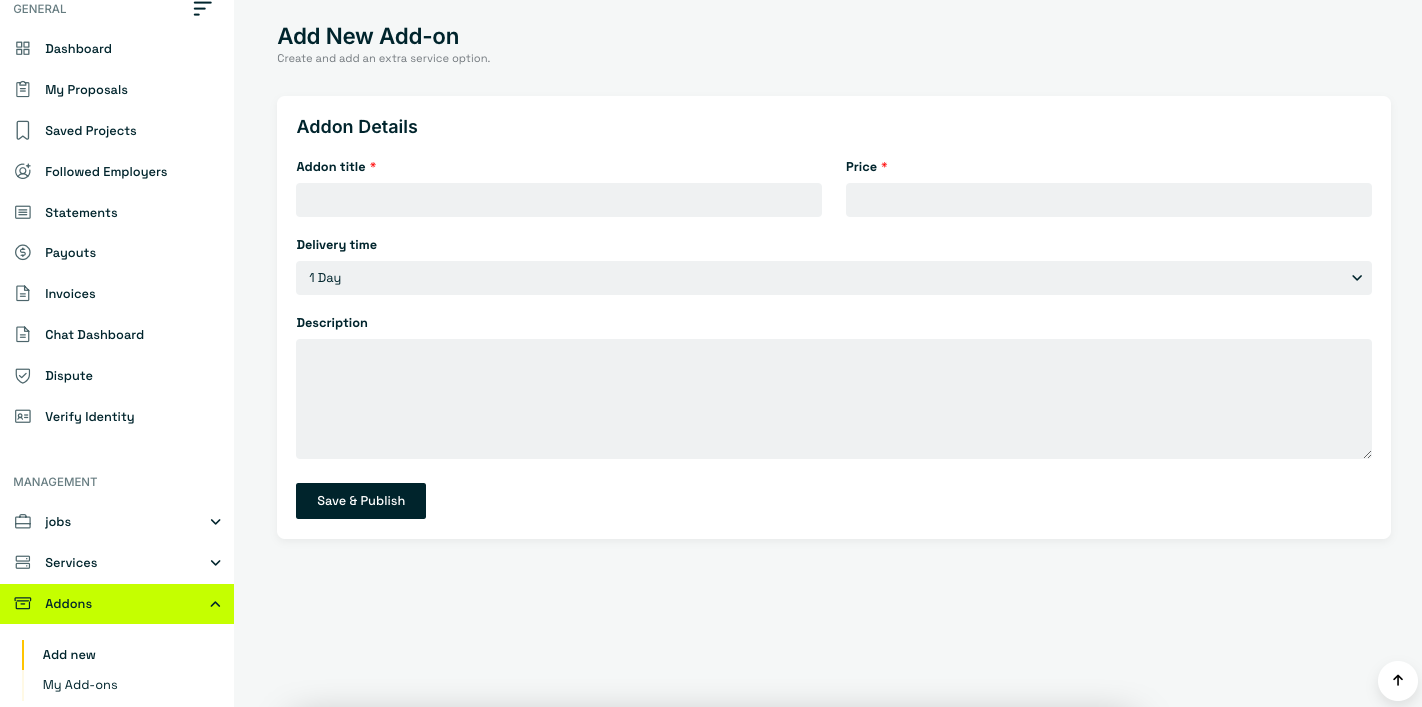
From the left sidebar menu under Management, click Addons > Add new and fill in the following details:
Addon title: Enter a clear title for the extra service (e.g., "Fast 24-Hour Delivery").
Price: Specify the additional cost charged to the client.
Delivery time: Select how many days/hours this add-on adds to the project timeline.
Description: Briefly explain what is included in this extra option.
Managing Created Add-ons
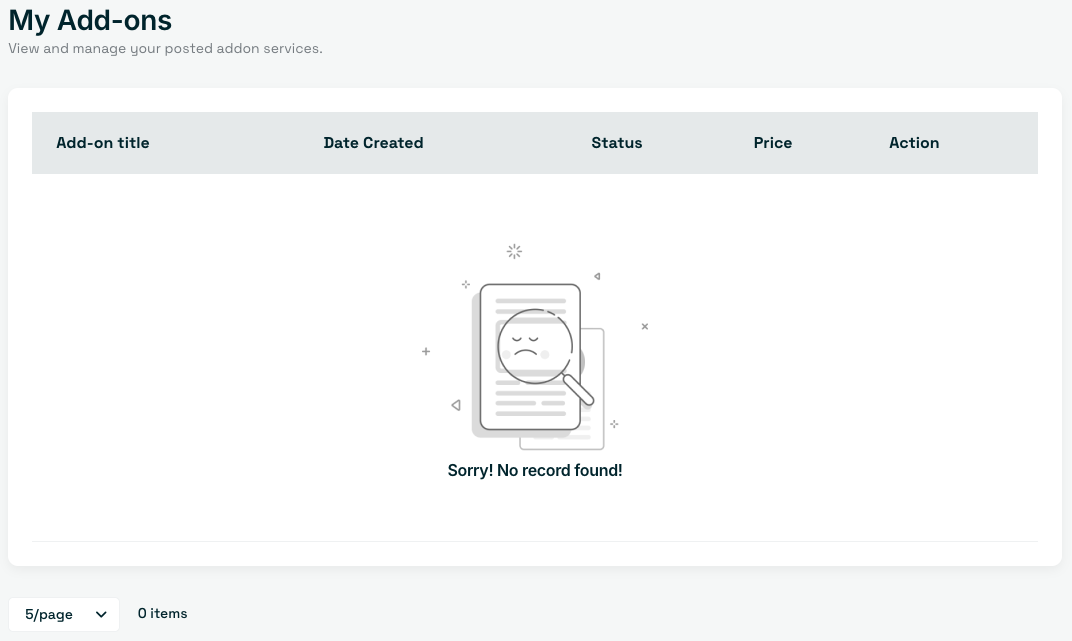
Navigate to Addons > My Add-ons to view a full index of your created add-on options. From this dashboard, you can review details like Date Created, Status, and Price, as well as manage quick actions to edit or delete any option at any time.
Frequently Asked Questions (FAQs)
Common questions freelancers ask when creating and managing services on Serpworks:
How long will it take for my service to get published?
Your service listing is processed immediately after clicking Save & Publish in Step 4. Once submitted, it will be published live on the marketplace instantly unless flagged for manual compliance review.
Can I feature my service on Serpworks?
Yes, but featured spots are limited. You can enable the Service Featured toggle during Step 1 (Overview) to request featured placement on your profile and marketplace pages, subject to available slots.
How can I add extra items or options to my services?
You can add extras by linking service add-ons in Step 2 (Scope & Pricing). Use the add-on search bar to attach existing options or create new ones under Addons > Add new in your dashboard sidebar.
What image size and format should I use for my service thumbnail and gallery?
We recommend uploading images with minimum dimensions of 816x543 pixels in PNG or JPG format. Make sure each image file size is kept under 5MB for fast loading.
Can I edit my service details or FAQs after publishing?
Yes. You can manage and update your published listings anytime by navigating to Services > Posted Services in your sidebar menu and clicking the edit option on your service listing.
Contact Serpworks for Help
Need assistance setting up your service, managing add-ons, or verifying your account? Our support team is here to guide you every step of the way.