How to Send Proposals on Jobs as a Freelancer

Learn how to search for job postings, submit custom hourly or fixed-price proposals, communicate with clients, and manage your project milestones on Serpworks.

Guide to Send Proposals on Jobs as a Freelancer

After creating your freelancer account on Serpworks, learn how to browse available job postings, submit tailored hourly or fixed-price proposals, communicate with employers, and manage your project milestones effectively.

Step 1: Log In to Your Account

After creating your account, log in using your registered credentials to access your freelancer dashboard and manage active job applications.

Step 2: Browse & Filter Jobs

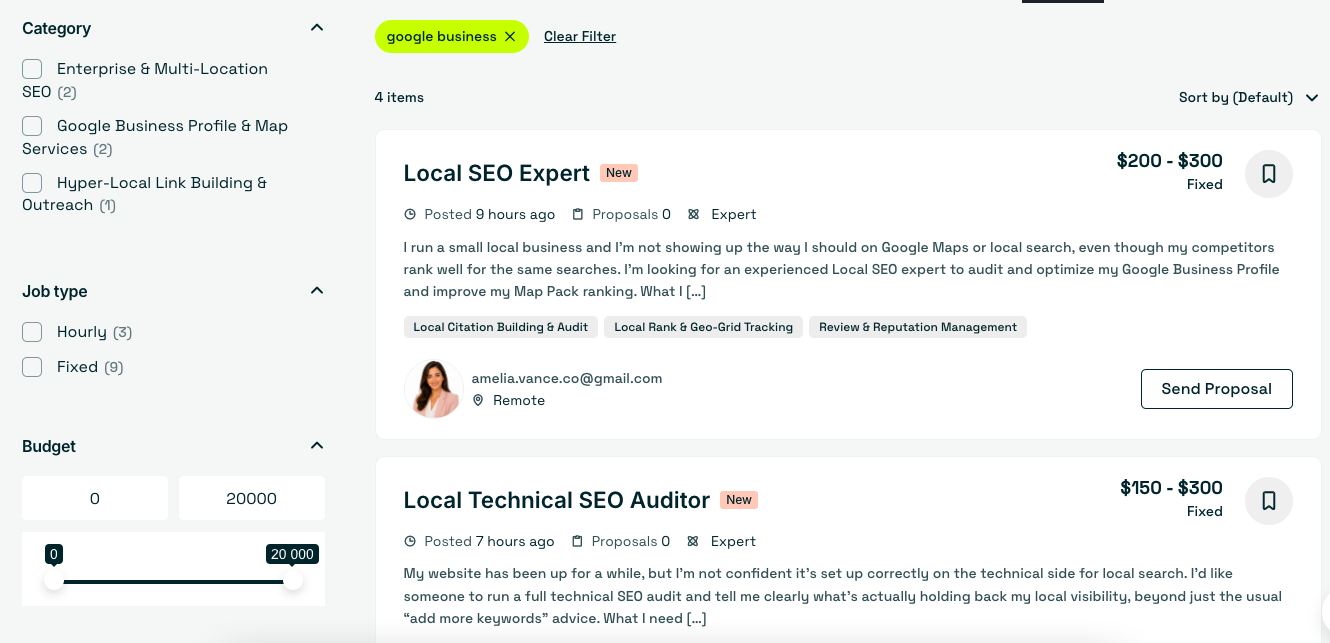
Visit the homepage and navigate to Employers > Jobs, or go directly to serpworks.com/jobs. Use the search bar and sidebar filters to sort listings by skill, location, budget range, or project type, then click Send Proposal.

Step 3: Submit Proposal Details

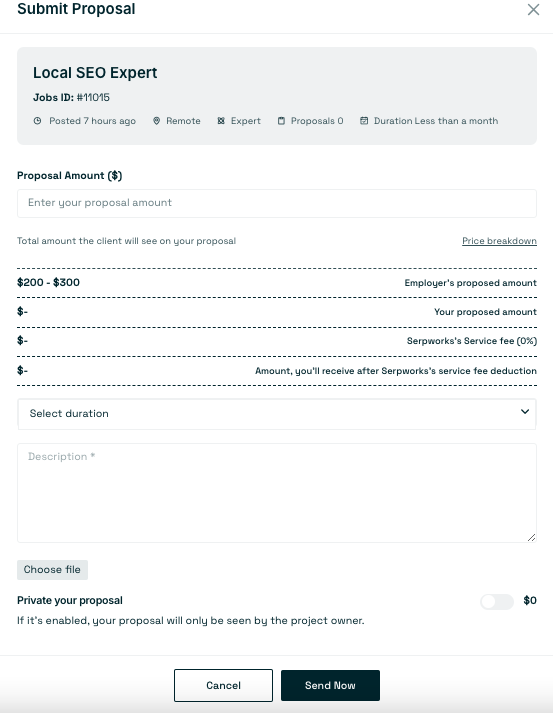
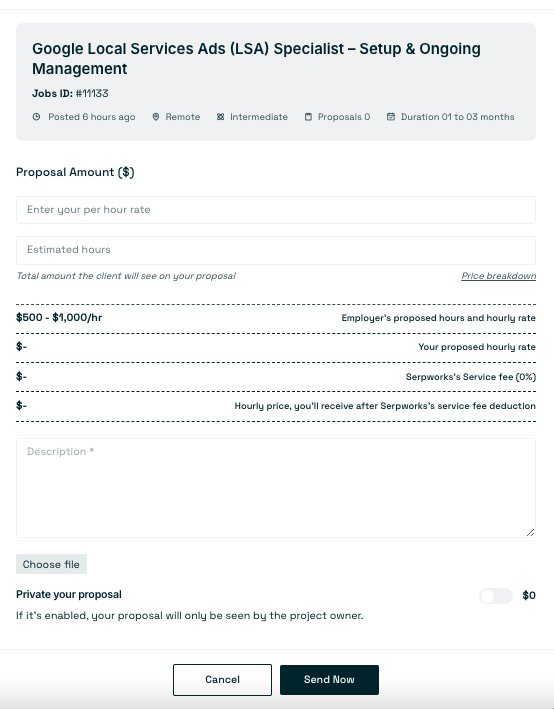
Fill out the required proposal details based on the project structure:
Hourly Jobs: Enter your hourly rate, estimated project completion hours, cover letter description, and attach portfolio files.
Fixed-Price Jobs: Enter your total proposal amount, estimated duration, cover letter description, and attach relevant portfolio files.
Click Send Now to submit. (Note: Proposal submissions depend on your account membership limit.)


Step 4: Track Pending Proposals

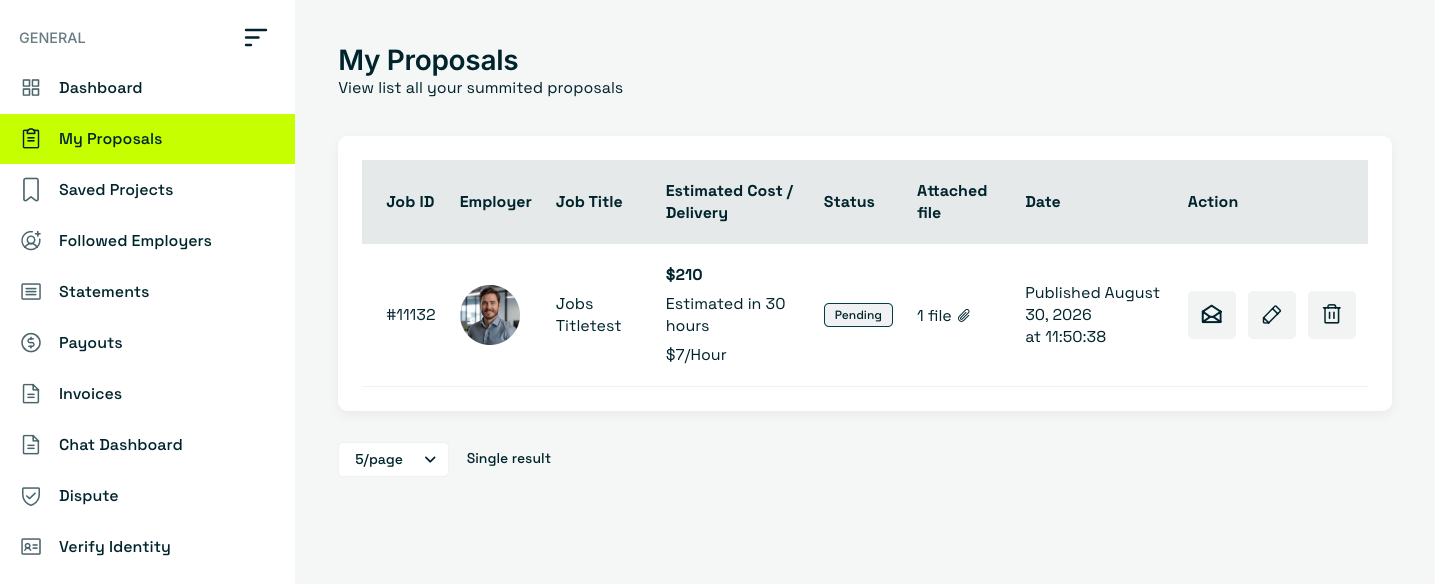
After submitting, navigate to Dashboard > My Proposals in your sidebar menu to confirm your proposal is active under Pending status.

Step 5: Edit Pending Proposals

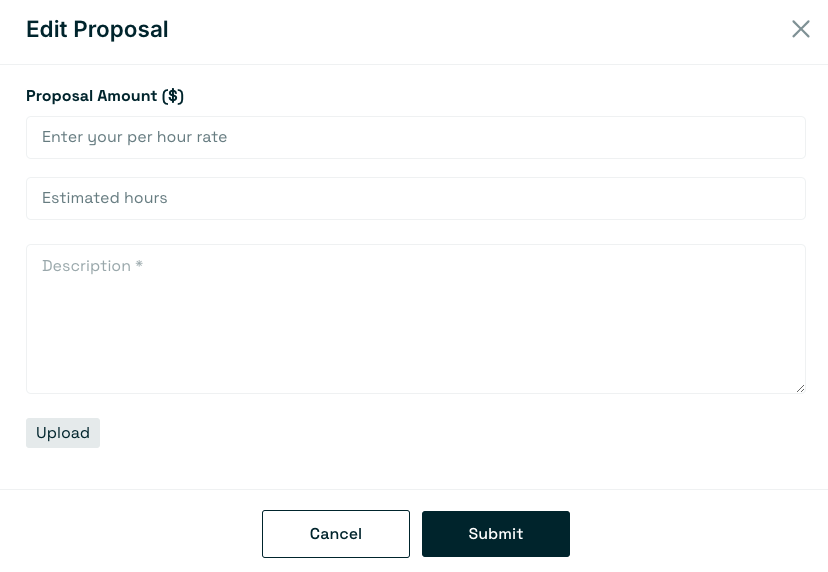
If you need to update your application details before a client accepts, click the Edit icon on your submitted proposal. Modify your pricing, estimated hours, description, or attachments, then click Submit.

Step 6: Review Acceptance & Ongoing Jobs

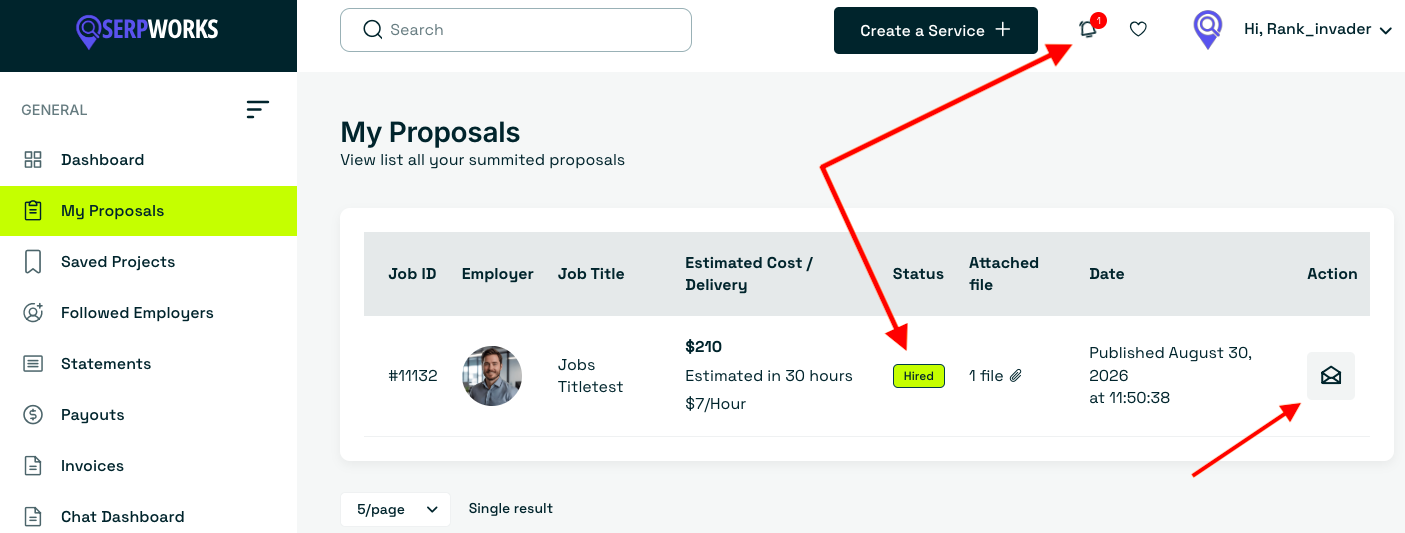
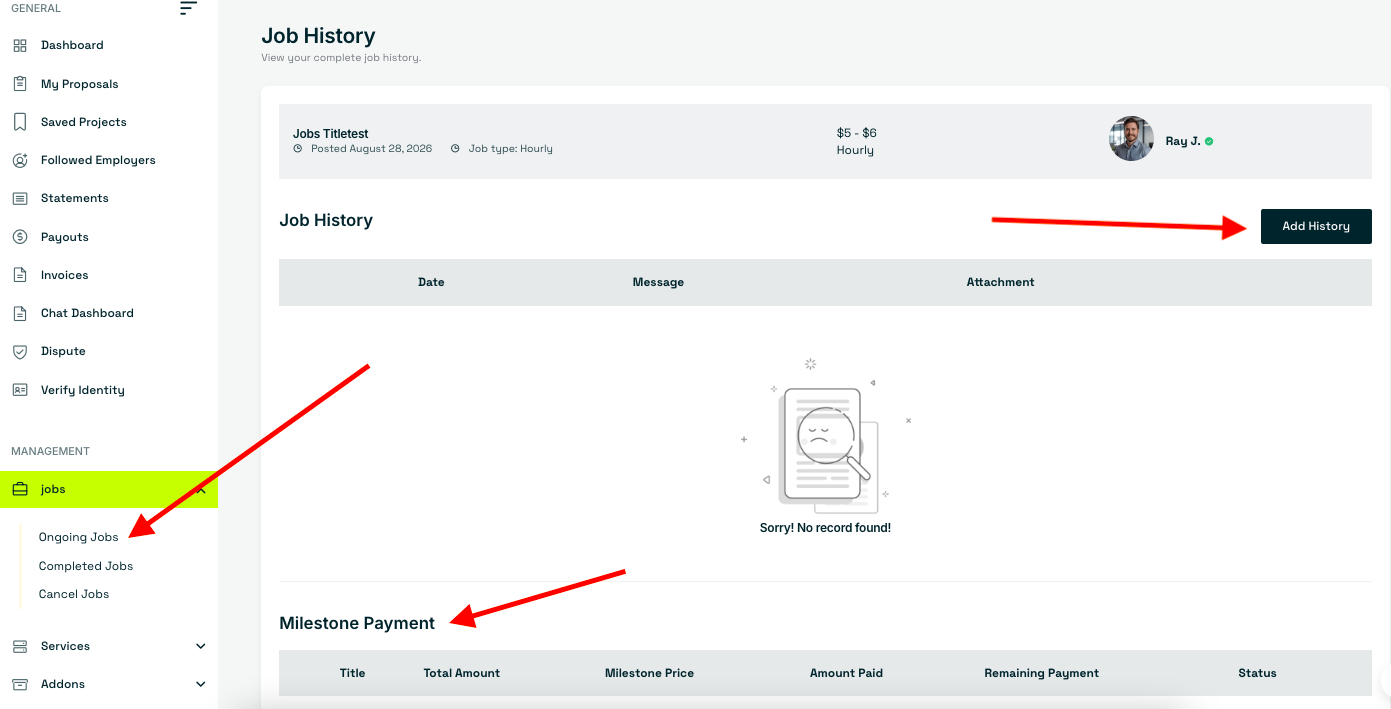
Your proposal will show a status of Pending or Rejected. When accepted, you will receive a notification alert and see a green "Hired" status badge. Click the Actions Envelope Icon or navigate to Dashboard > Jobs > Ongoing Jobs to open the active project page.

Step 7: Communicate & Post Updates

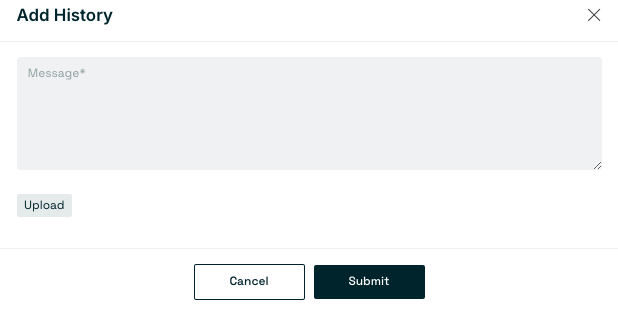
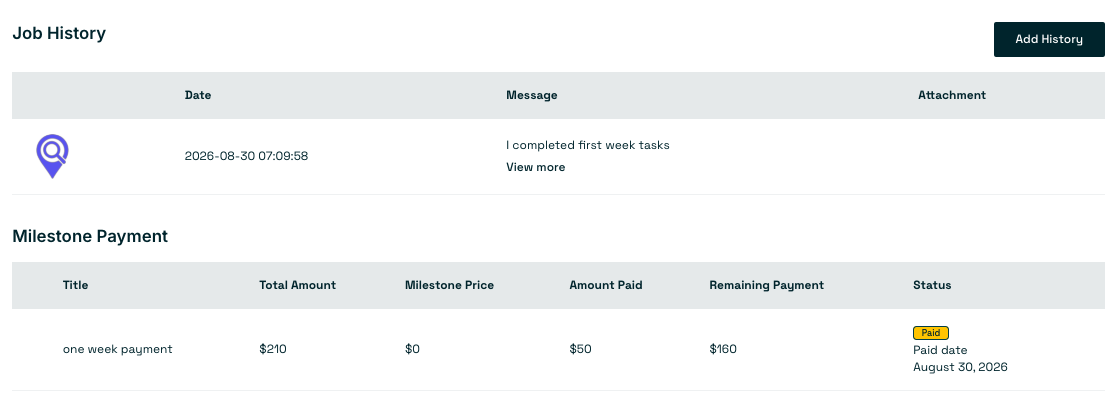
Use the ongoign job page to communicate with your employer. Click the Add History button to write messages, request required information, or attach project deliverables. All file histories and discussion logs are stored on this page.

Step 8: Manage Milestone Payments

For hourly or milestone contracts, send a request to your client to release milestone payments using the Add History button. Track paid amounts, pending balances, and transaction dates directly on the project dashboard.

Step 9: View Completed Jobs

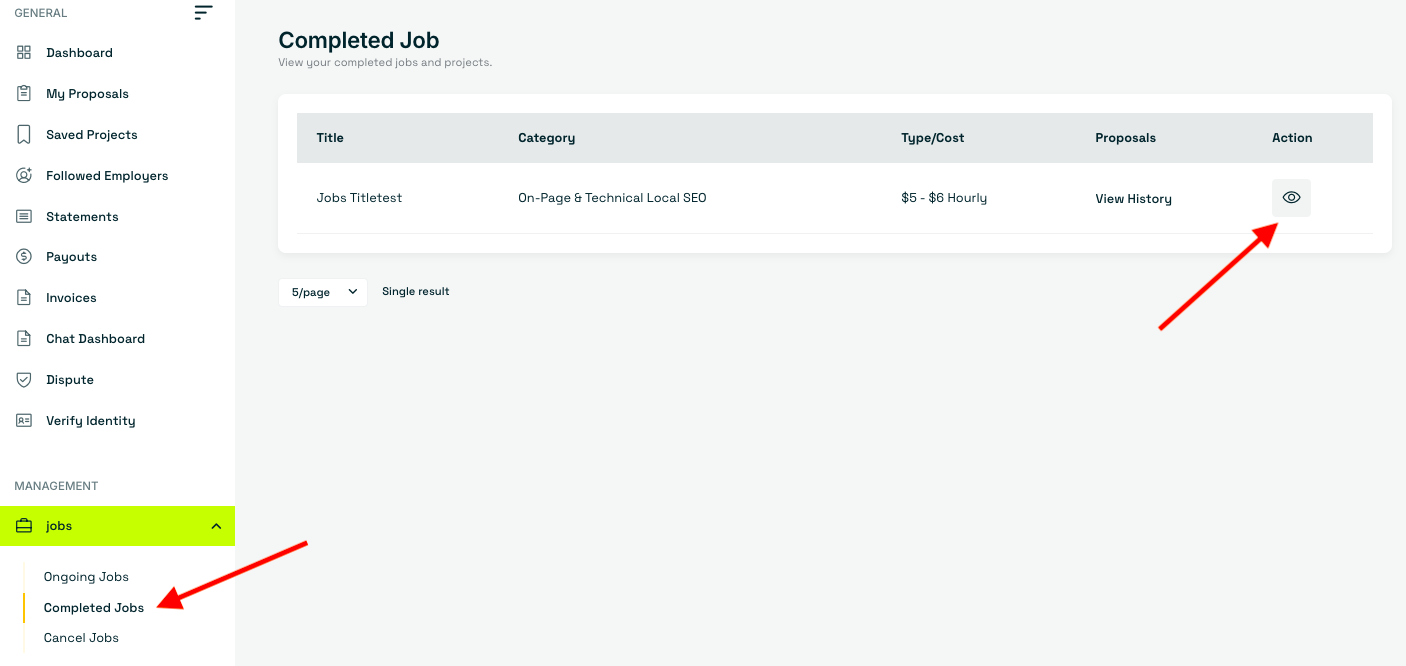
Once your project is finished and approved by the buyer, navigate to Dashboard > Jobs > Completed Jobs and click the Actions View Icon to review the finalized order summary.

Step 10: Check Wallet Balance & Payouts

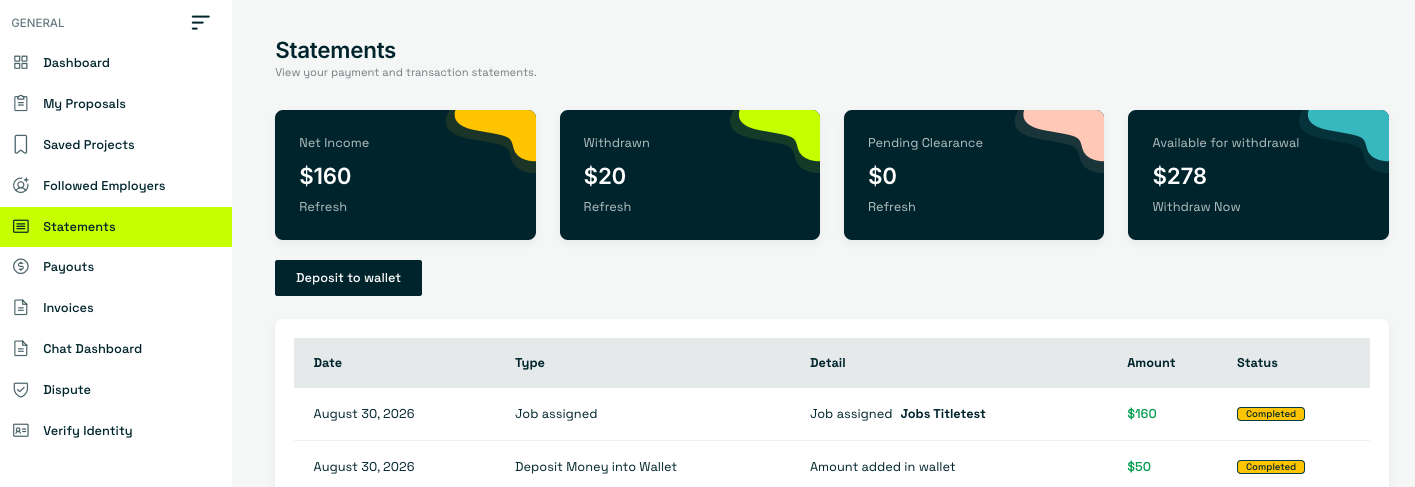
To view payment statuses and available balances, go to Dashboard > Statements. Monitor completed transaction dates and wallet balances to initiate payout requests to your account.

Step 11: View Buyer Reviews

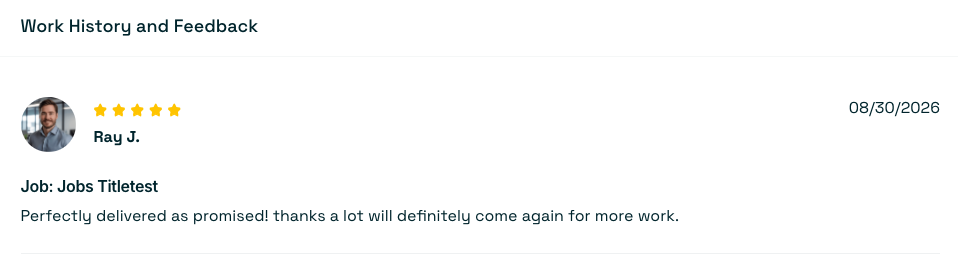
Once the project is finished, if the buyer leaves feedback and a rating, it will automatically appear on your public profile page under your reviews history.

Frequently Asked Questions (FAQs)

Common questions freelancers ask about submitting proposals and managing jobs on Serpworks:

How many proposals can I submit per month?

The number of proposals you can submit depends on your active membership package. You can check your remaining proposal balance under Dashboard > My Proposals.

Can I edit or withdraw a proposal after sending it?

Yes. As long as the proposal remains in Pending status, you can edit your rates, estimated hours, cover letter, and attachments by clicking the Edit icon in Dashboard > My Proposals.

How do I know if an employer accepts my proposal?

When an employer accepts your proposal, you will receive a notification alert via the top bell icon, an email notification, and a green "Hired" status badge on your project page.

How do milestone payments work for hourly or fixed projects?

Milestone payments are deposited by the client into escrow. You can request a milestone release using the Add History button on the ongoing job page. Once paid, the funds will immediately reflect in your wallet statement balance.

How do I request a withdrawal for my earned payments?

To review completed payments and request payouts, navigate to Dashboard > Statements. Once funds show a Completed status in your wallet balance, you can initiate a withdrawal to your registered payout account.

Contact Serpworks for Help

Have questions about submitting proposals, tracking milestones, or managing your wallet payouts? Our support team is here to assist you every step of the way.