

How to Sell a Service on Serpworks
Selling professional services on Serpworks is a straightforward, secure process designed to connect you with clients who need your skills. Whether you offer specialized expertise or custom solutions, our platform ensures your payments are held safely in Serpworks Escrow while you focus on delivering high quality work. Follow this step by step guide to learn how to manage incoming orders, communicate with clients, submit project updates, and complete jobs on Serpworks.
Direct Answer Summary
To sell services on Serpworks, log in to your account and manage orders under Dashboard > Services > Ongoing Services. Once the Serpworks Escrow Team confirms client payment, click View to access the order page. Communicate progress and upload deliverables using the Add History button. Once you deliver the work and the client completes the order, funds release and their star rating review automatically appears on your service page.
Step 1: Log in to Your Account
Log in to your account and go to the dashboard. If you need to create a freelancer account, follow our guide on How To Signup as a Freelancer on Serpworks.
Step 2: Access New & Ongoing Orders
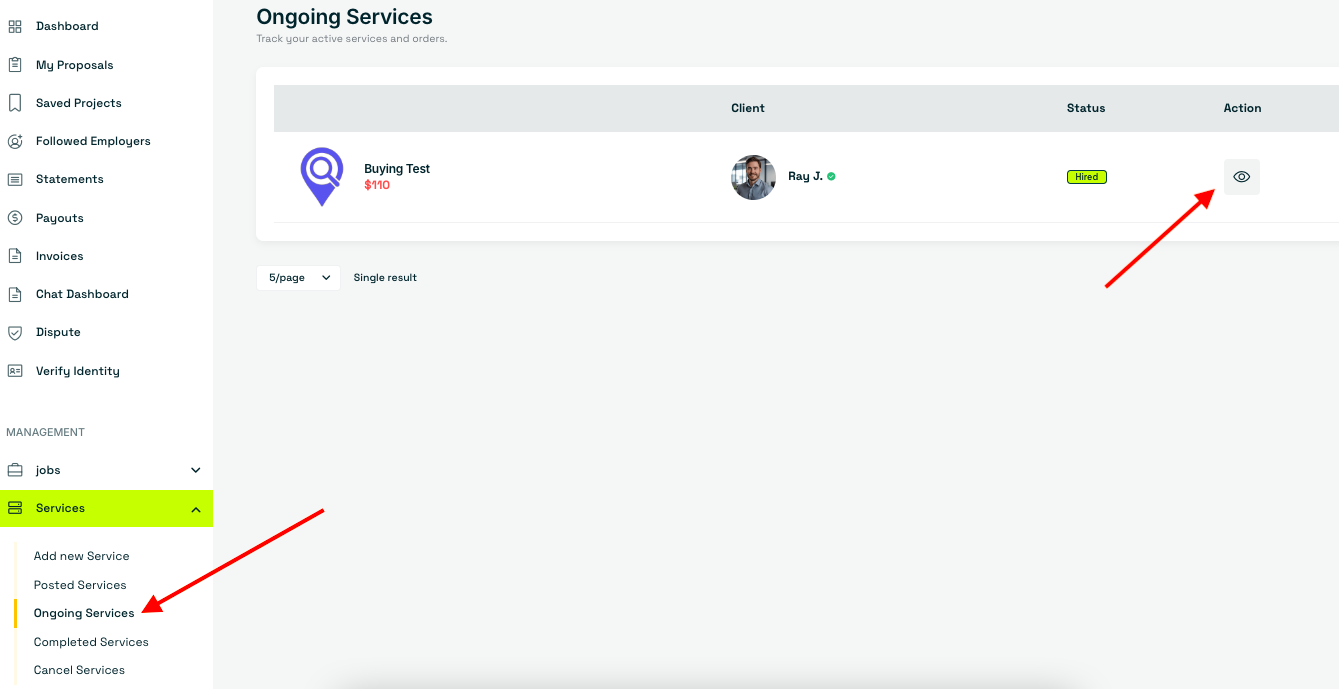
When a client places an order and the payment is confirmed by the Serpworks Escrow Team, you will see a notification on your dashboard upon logging in. You can also view all active jobs by going to Dashboard > Services > Ongoing Services. Click the View icon under the Actions column to open the order page.

Step 3: Communicate & Send Updates
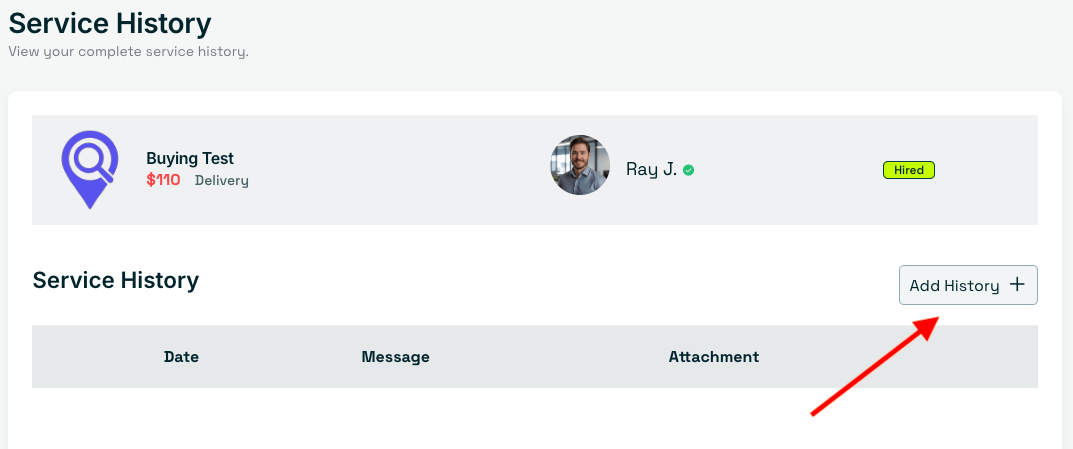
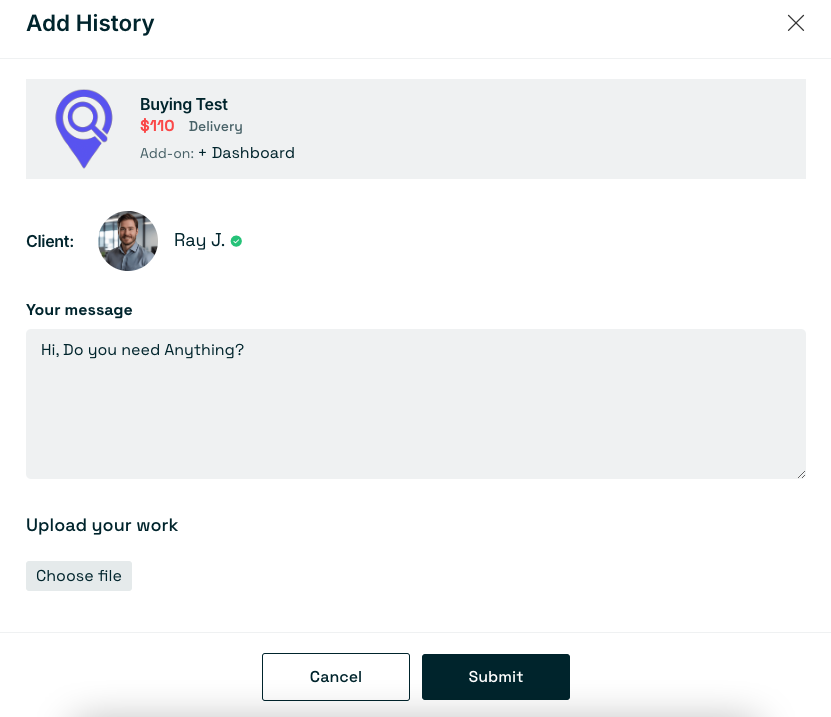
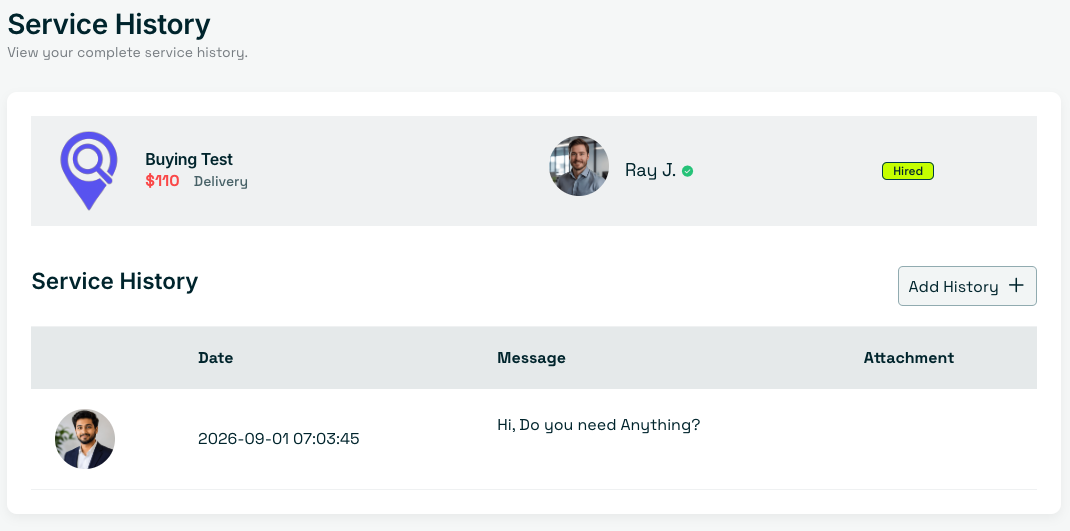
To send an update to the client, click the Add History button. A pop-up will appear where you can type your message, add an attachment, and click Submit. You can also review all client messages and project updates on the Order History page.
Step 4: Deliver Work & Receive Reviews
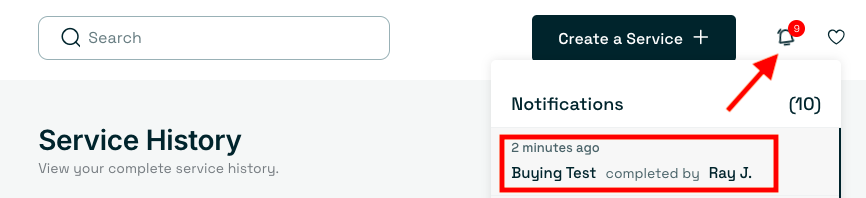
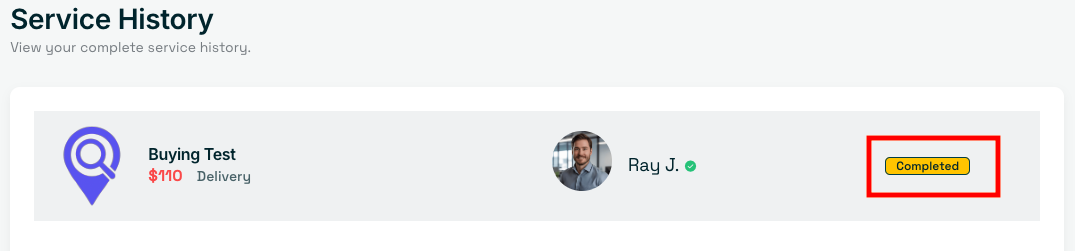
Once you deliver the order and the client marks it as completed and leaves a review, you will receive a notification on your dashboard updating the status to Completed. You can then view the client review directly on your service page.
Frequently Asked Questions (FAQs)
How do I know when a new order has been placed?
You will receive a notification on your dashboard when a client places an order and the Serpworks Escrow Team confirms the payment. You can also check all active jobs by navigating to Dashboard > Services > Ongoing Services.
How do I communicate with my client during an active order?
You can send messages and attachments directly through the order page by clicking the Add History button. All updates, responses, and files exchanged between you and the client will be recorded on the Order History page.
When will I see the client review on my service page?
Once you deliver the completed work and the client marks the order as complete, they will be prompted to leave feedback and a star rating. The review will automatically appear on your service page and dashboard.
Ready to Expand Your Freelance Business?
Start connecting with clients who are looking for your specific skills today. Find Clients Now.